


 Updated
MetaTrader 5 (MT5) is one of the two platforms most CFD brokers offer as standard, alongside its predecessor, MetaTrader 4 (MT4). If you’re wondering how to use MetaTrader 5—from your first login to placing a trade and automating a strategy—this guide walks you through every stage with Vantage Markets.
MT5 supports a wider range of markets than MT4, including forex, shares, indices, commodities, bonds, and digital currencies, all traded as CFDs. Its charting tools, order types, and Expert Advisor (EA) support make it a common choice for traders who want more from the platform than a simple order ticket.
This guide covers downloading and installing MT5 on PC, Mac, and mobile, setting up your Vantage Account and logging in, placing and managing trades, customising charts and indicators, automating strategies with EAs, managing funds, and choosing the right MT5 broker.
Key Points
- Downloading, installing, and logging in to MetaTrader 5 typically takes under 15 minutes on PC, Mac, or mobile.
- MT5 supports more markets and order types than MT4, including 6 pending order types and 21 timeframes.
- A Vantage demo account lets you practise on MT5 with virtual funds and no minimum deposit.
- Expert Advisors (EAs) can automate parts of a strategy, but they still require monitoring—they don’t remove the need for oversight.
- Leverage can increase your market exposure relative to your deposit, but it magnifies losses as well as gains.
- Choosing the right MT5 broker matters as much as mastering the platform—execution speed, spreads, and market range all vary.
What Is MetaTrader 5?
MetaTrader 5 (MT5), developed by MetaQuotes, is a multi-asset trading platform that supports forex, shares, indices, commodities, bonds, and digital currencies, all available as CFDs through Vantage.1 It’s the successor to MT4, built for traders who want exposure beyond currency markets.
Compared with MT4, MT5 offers more order types, more built-in technical indicators, additional timeframes, and an upgraded strategy tester for testing Expert Advisors.2 The interface is broadly similar to MT4’s, so traders familiar with one platform typically adapt to the other over time.
You can access MT5 through a downloadable desktop application, a mobile app for Android and iOS, or directly in a browser through WebTrader (no installation required).
MetaTrader 4 vs. MetaTrader 5: What Are the 6 Key Differences?
MT5 isn’t simply a newer version of MT4—it’s built for a broader range of markets and trading styles:
| Feature | MetaTrader 4 (MT4) | MetaTrader 5 (MT5) |
| Markets | Forex CFDs | Forex, shares, indices, commodities, bonds and digital currencies, all via CFDs |
| Pending order types | 4 | 6 |
| Built-in indicators | 30 | 38 |
| Timeframes | 9 | 21 |
| Order execution modes | Instant, request | Instant, request, market, exchange |
| Strategy tester | Single-currency | Multi-currency, multi-threaded |
Read Vantage Markets’ full comparison guide on MT4 vs. MT5 for a breakdown of which platform suits different trading styles.
How to Download and Install MetaTrader 5
Whether you’re using desktop or mobile, macOs or Windows, here’s how to download and install MetaTrader 5 on your device.
On PC (Windows, macOS, or Linux)
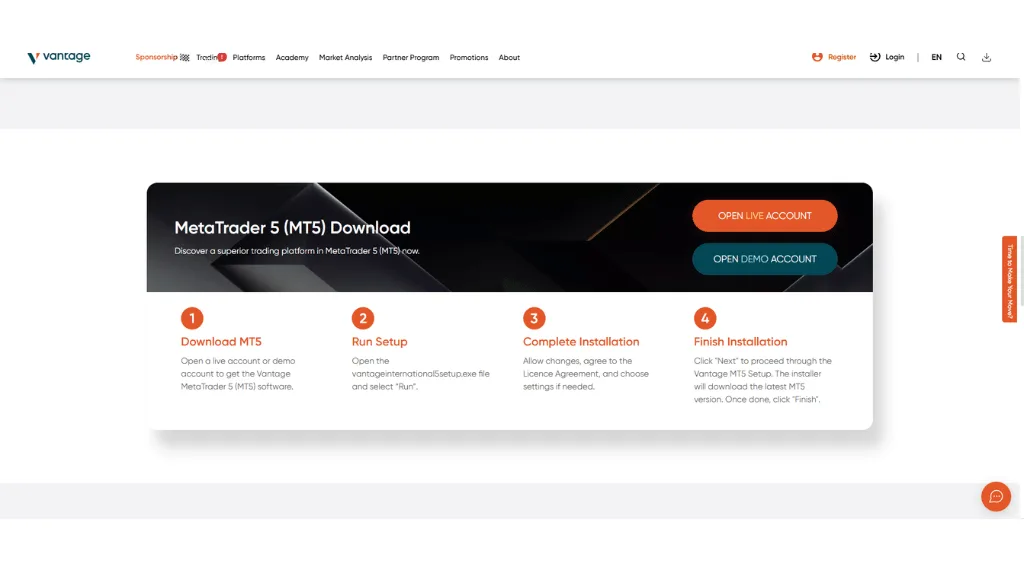
- Go to the MetaTrader 5 platform page on the Vantage Markets website.
- Select the Windows, macOS, or Linux download package that matches your device.
- Open the downloaded file, accept the licence agreement, and follow the setup wizard.
- Once installed, MT5 launches automatically—or you can manually open it from your desktop.
On Mac
MT5 supports macOS directly. Download the macOS package from the same MT5 download page, open the installer, grant any system permissions requested, and follow the setup steps. If you’d rather skip installation altogether, WebTrader can give you full platform access in a browser on Mac.
On Mobile (Android and iOS)
- Search for MetaTrader 5 in the Google Play Store (Android) or Apple App Store (iOS).
- Install the app and open it.
- Tap Login to an Existing Account, then select Vantage Markets from the broker list, or enter Vantage’s server details manually.
- Enter your MT5 account number and password to log in.
Prefer an all-in-one app instead? Download the Vantage App which combines account management and trading in a single mobile app, alongside MT5.
Setting Up Your MT5 Account and Logging In
Once you’ve downloaded MT5 on your device, here’s how to set up your account and log in.
Creating Your MT5 Account
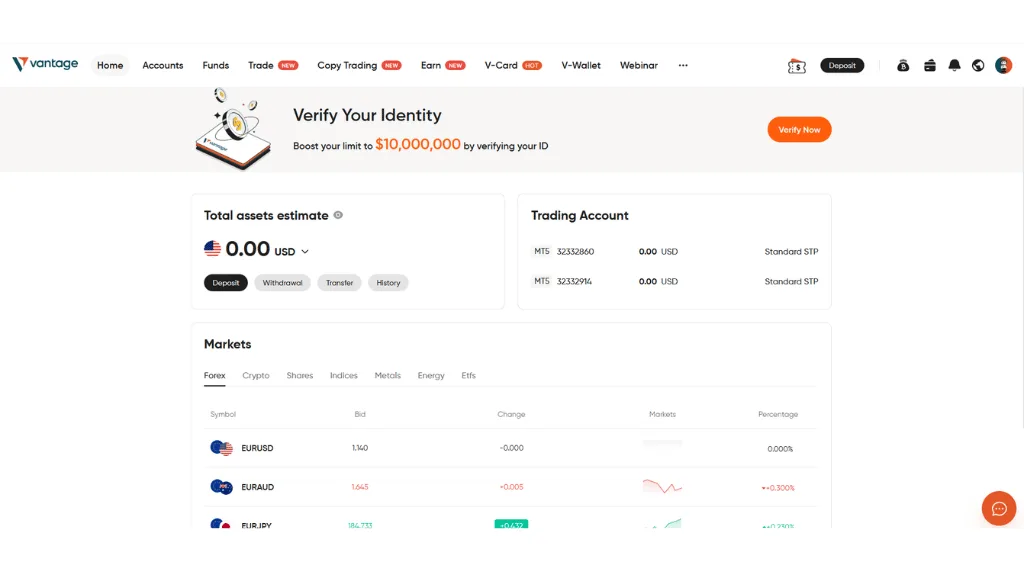
- Go to the Vantage Markets website and hover over Register in the top-right corner.
- Enter your personal details to open a Vantage Live Account, or click on Practice Trading for a Vantage Demo Account.
- Complete the on-screen registration and submit any documents required for verification.
- Once your account is verified—and funded, for a live account—you’ll receive your MT5 login credentials: account number, password, and trading server.
Logging In to MT5
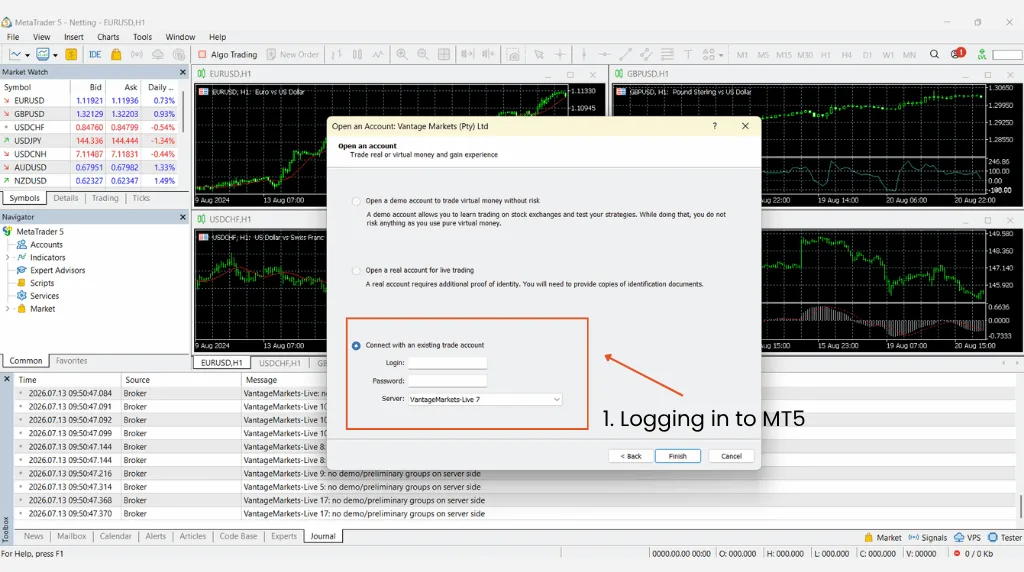
- Open MT5 on your PC, Mac, or mobile device.
- Select Login to an Existing Account (on desktop: File > Open an Account, then enter Vantage International and select Vantage from the list).
- Enter your account number and password, then choose Vantage’s trading server. Click Login (or Finish).
- If the details are correct, live prices and charts appear immediately.
Signing Out of MT5
You don’t need to log out between sessions as MT5 reopens into the same account automatically. If you’re using a shared or public computer, log out for security—here’s how:
Go to Navigator → click Accounts → right-click your account → select Delete
This removes your saved credentials from that device.
Trading on MT5: Placing and Managing Orders
Now that you’re all set up, you can move to the next stage of placing and managing orders on MetaTrader 5.
Placing a Market Order
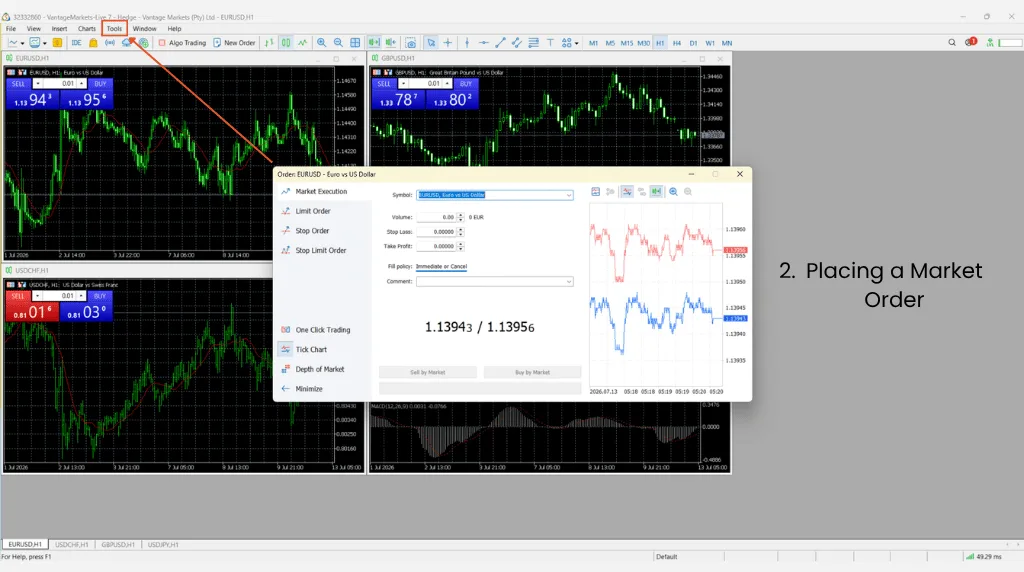
- Open a new order window—press F9, or click New Order in the toolbar.
- Use the Symbol dropdown to select the market you want to trade.
- Under Type, leave Market Execution selected—your order fills at the current market price.
- Set your volume and, if needed, a stop-loss and take-profit level. Click Buy or Sell.
Placing a Pending (Limit) Order
- Under Type, select Pending Order.
- Choose the order type that matches your intention:
- Buy Limit / Sell Limit (a specific price or better)
- Buy Stop / Sell Stop (activates once a price level is reached)
- Buy Stop Limit / Sell Stop Limit (activates at a target price without exceeding it)
- Set your volume, stop-loss, take-profit, and expiration date.
- Click Place. MT5 fills the order once your conditions are met—pending orders aren’t guaranteed to fill if the market gaps past your level.
Opening a Short Position
A short position gains if the price falls and loses if the price rises the mirror image of a long position. To open one on MT5, place a Sell order on an instrument you don’t hold. Close it with a Buy order once you’re ready to exit.
Viewing and Managing Open Trades
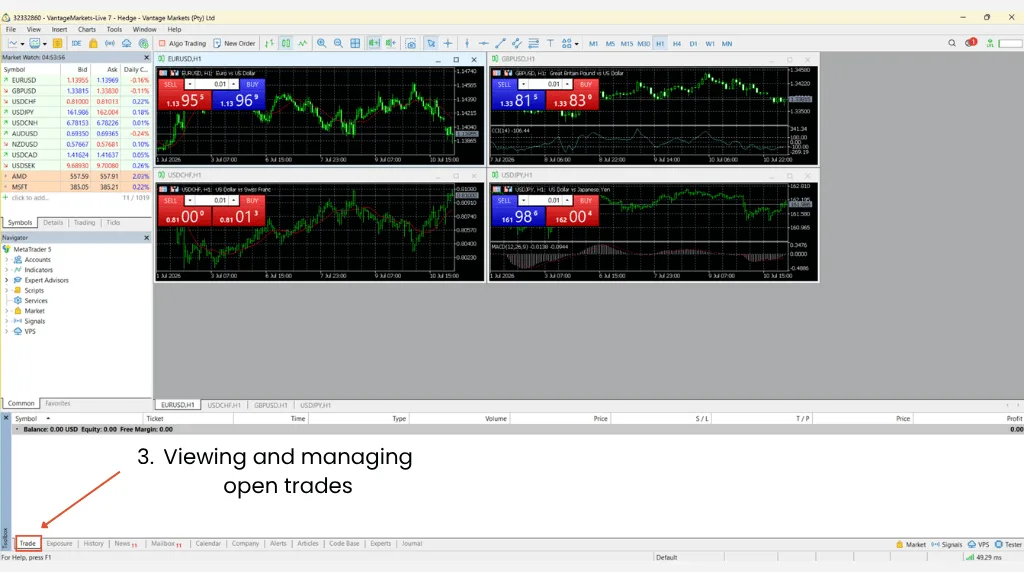
Click Trade in the bottom panel to see every open position, along with your account balance and floating profit or loss. Click an individual trade for more detail, or right-click to modify your stop-loss/take-profit or close the position directly.
Setting Up Charts and Technical Indicators
You can customise your chart settings and explore adding technical indicators within MT5’s trading platform.
Customising Charts
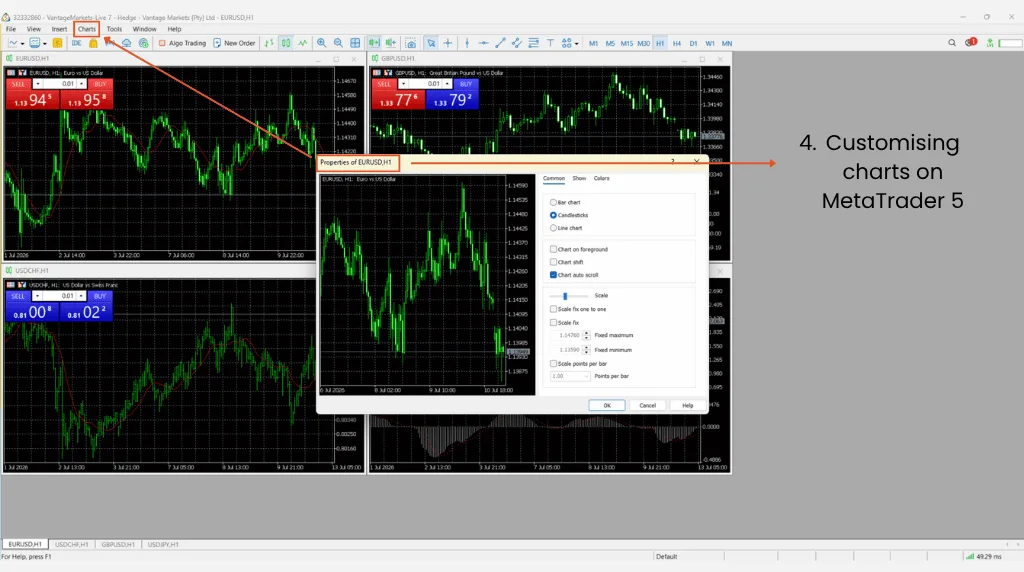
Go to Charts > Properties (or press F8) to adjust colours, gridlines, and other display settings. Use the toolbar buttons above each chart to switch timeframes and chart types—candlestick, bar, or line—without leaving the window.
Adding Technical Indicators
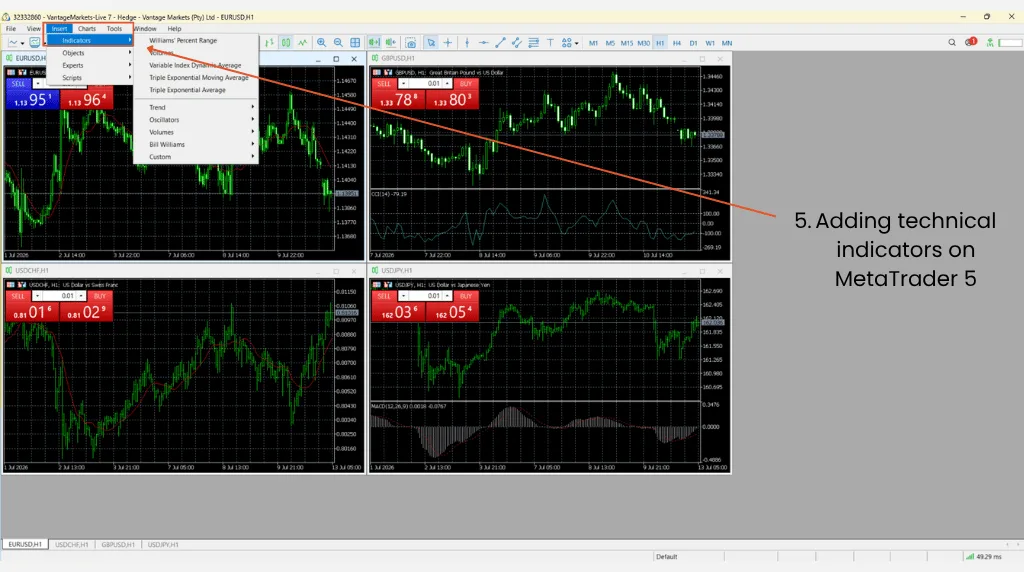
- Go to Insert > Indicators in the top toolbar.
- Choose an indicator from the categorised list—trend, oscillator, volume, and Bill Williams indicators are the main groups.
- Adjust the indicator’s parameters, or use the defaults, then click OK.
To remove an indicator, go to Charts > Indicator List, select it, and click Delete.
Installing Additional Indicators
Go to File > Open Data Folder, then MQL5 > Indicators. Double-click the indicator’s program file to install it. This will then appear alongside MT5’s built-in indicators whenever you add one to a chart.
Setting Up Trade Notifications
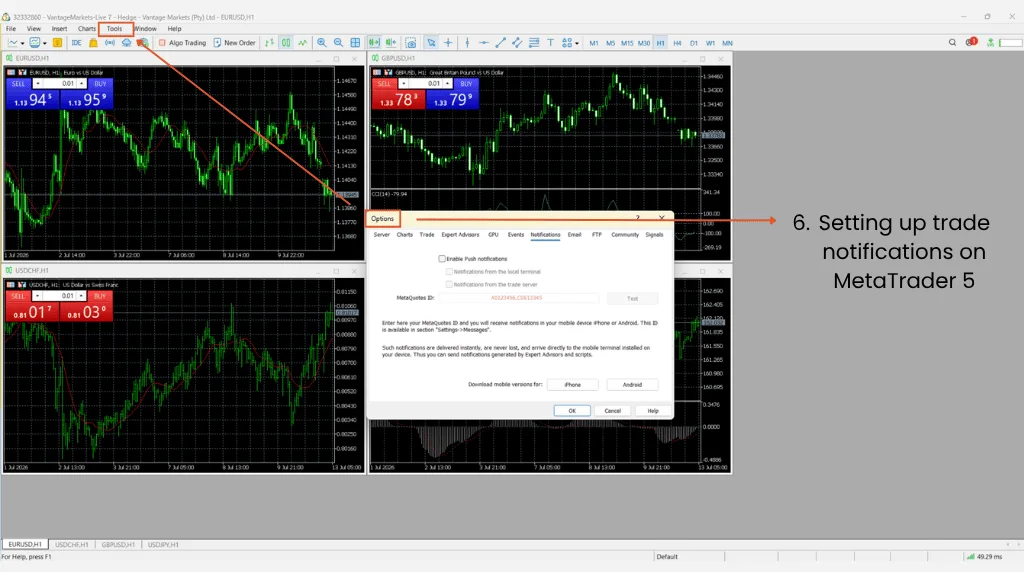
Push notifications (mobile): Open the MT5 app, go to Settings > Chats and Messages, and copy your MetaQuotes ID.
Push notifications (desktop): On MT5 desktop, go to Tools > Options > Notifications, enable push notifications, enter your MetaQuotes ID, and click Test.
Email notifications: On MT5 desktop, go to Tools > Options > Email, enable email notifications, fill in your email details, and click Test.
Automating Your Strategy With Expert Advisors
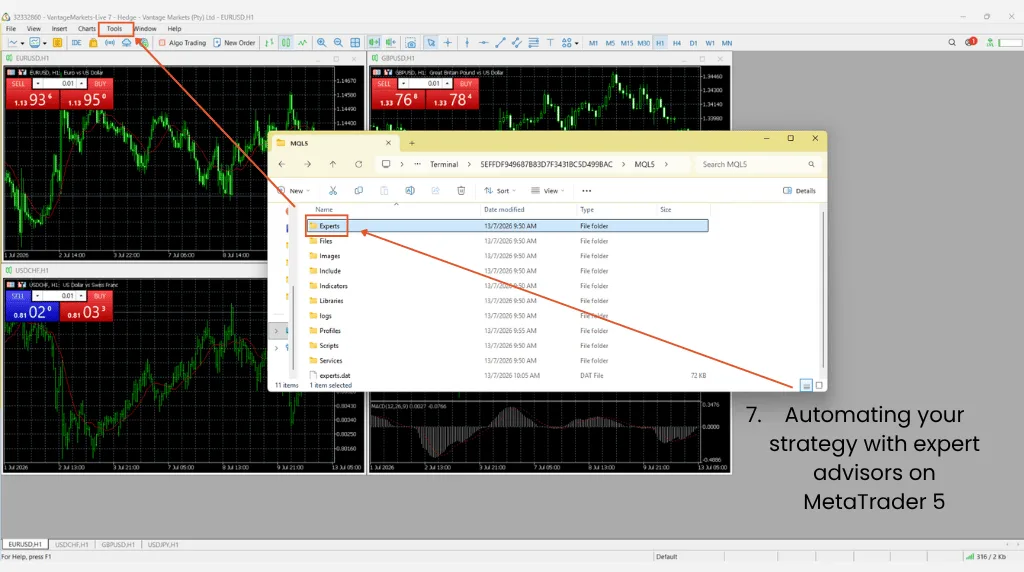
An Expert Advisor (EA) is a program that executes trades automatically based on predefined rules, a form of algorithmic trading that’s available on MT5.3
Take note that EAs still require monitoring, meaning that they don’t remove the need for oversight, since market conditions can change in ways a strategy’s rules didn’t anticipate.
Here’s how to use EAs on MT5:
- Installing an EA: Go to File > Open Data Folder > MQL5 > Experts, then double-click the EA’s program file to install it.
- Running an EA: Enable Algo Trading in the toolbar, drag the EA from the Navigator panel onto a chart, review its settings in the Inputs tab, and click OK to start it.
- Removing an EA: Right-click the chart, go to Experts List, select the EA, and click Remove.
MT5 also supports copy trading through its Trading Signals feature, letting you automatically replicate another trader’s positions—available via Vantage’s copy trading platform.4Copy trading involves risk, and past performance is not a reliable indicator of future results.
Depositing and Withdrawing Funds
MT5 itself doesn’t process deposits or withdrawals; it only executes trades. Manage funding through Vantage Markets’ Client Portal or the Vantage App: deposits clear into your trading account before they’re available to trade and withdrawal requests are handled from the same portal via your linked payment method.
Practising With a Demo Account
A Vantage Demo Account lets you trade on MT5 with virtual funds (up to $100,000) with no minimum deposit and no fees to open or maintain it. It’s one way for traders and investors to get familiar with order types, chart tools, and EA setup before trading with a live account.
One thing to note is that demo fills and simulated trading conditions won’t always match live market execution exactly.
Understanding Leverage on MT5
Leverage lets you control a larger position than your account balance alone would allow, by putting up a fraction of the position’s value as margin. Vantage Markets offers leverage of up to 1:1000 on eligible trading instruments and account types, depending on where you trade.
Bear in mind that leverage magnifies potential gains and potential losses. In other words, a leveraged position can lose more than its margin if the market moves against you quickly. Always check your account’s specific leverage tier in the MT5 platform before increasing your exposure.5
Related Article: What Is Leverage in Forex?
Choosing the Right MT5 Broker
Mastering MT5 is only one part of the equation—the broker behind the platform matters just as much.
When comparing MT5 brokers, look at execution speed and reliability during volatile conditions, the breadth of markets on offer (forex, shares, indices, commodities, bonds, and digital currencies via CFDs), platform fees, and account minimums.
For interested MT5 traders, Vantage Markets doesn’t charge an additional fee to use MT5 itself, though third-party add-ons such as custom indicators or EAs may carry their own cost.
Putting Your MT5 Setup to Work
From installation and login to charting and fund management, learning how to use MetaTrader 5 can involve a lot of steps before you actually execute a trade. That said, each piece builds on the last. Once your account is set up, the fastest way to get comfortable is to practise the mechanics above on a demo account before trading live.
FAQs
Is MT5 good for beginners?
MT5’s demo account mode lets new traders practise every function covered in this guide—downloading, logging in, placing trades, and setting up indicators—without risking real capital. That said, the platform’s breadth of order types and tools means there’s a learning curve, and no platform makes trading itself risk-free.
How do I use MetaTrader 5 on mobile?
Download the MT5 app from the Google Play Store or Apple App Store, then log in with your existing Vantage MT5 account number and password. The mobile app supports most core functions, including placing trades, viewing charts, and receiving push notifications.
Can you make real money on MetaTrader 5?
MT5 is a trading platform, not a strategy. Any outcome depends on the markets you trade, the approach you use, and risk factors outside your control. Trading CFDs on MT5 carries a high risk of losing money rapidly due to leverage, and losses are just as possible as gains. Treat a demo account as a way to learn the platform’s mechanics, not as a guarantee of how a live account will perform and help you make real money on MetaTrader 5.
How much money do I need to start trading on MetaTrader 5?
This depends on the broker platform, account type, and instrument you trade. For example, Vantage Markets’ Standard STP account has a $50 minimum deposit, though the margin needed for any individual position also depends on the instrument and your chosen leverage. A demo account, by contrast, requires no deposit at all.
Is MetaTrader 5 easy to learn?
The core functions—logging in, placing a market order, and reading a price chart—are straightforward to pick up. Advanced features like Expert Advisors, multiple pending order types, and custom indicators typically take longer to master, which is part of why a demo account is useful before trading live.
What’s the difference between MetaTrader 4 and MetaTrader 5?
MT5 supports more markets, more order types, more built-in indicators, and more timeframes than MT4, and it uses a more advanced, multi-threaded strategy tester. MT4 remains focused primarily on forex CFDs—see our MT4 vs. MT5 Comparison guide for the full breakdown.
How do I download MetaTrader 5 for free?
MT5 is free to download directly from Vantage’s MT5 platform page, whether it’s for Windows, macOS, or mobile. You’ll need a live or demo trading account with a brokerage platform to connect to live markets, but the software itself carries no charge.
RISK WARNING: CFDs are complex financial instruments and carry a high risk of losing money rapidly due to leverage. You should ensure you fully understand the risks involved and carefully consider whether you can afford to take the high risk of losing your money before trading.
Disclaimer: The information is provided for educational purposes only and doesn’t take into account your personal objectives, financial circumstances, or needs. It does not constitute investment advice. We encourage you to seek independent advice if necessary. The information has not been prepared in accordance with legal requirements designed to promote the independence of investment research. No representation or warranty is given as to the accuracy or completeness of any information contained within. This material may contain historical or past performance figures and should not be relied on. Furthermore estimates, forward-looking statements, and forecasts cannot be guaranteed. The information on this site and the products and services offered are not intended for distribution to any person in any country or jurisdiction where such distribution or use would be contrary to local law or regulation.
References
- “MetaTrader 5 Trading Platform – MetaTrader 5”. https://www.metatrader5.com/en/trading-platform. Accessed 12 July 2026.
- “Trading and Orders in MetaTrader 5 – MetaTrader 5”. https://www.metatrader5.com/en/trading-platform/trading. Accessed 12 July 2026.
- “Algorithmic Trading – MetaTrader 5”. https://www.metatrader5.com/en/automated-trading. Accessed 12 July 2026.
- “Trading Signals in MetaTrader 5 – MetaTrader 5”. https://www.metatrader5.com/en/trading-platform/trading-signals. Accessed 12 July 2026.
- “What Is Leverage in Forex? – Vantage Markets”. https://www.vantagemarkets.co.id/academy/what-is-leverage-in-forex/. Accessed 12 July 2026.